SECURITY008 — Organization Entities, User Roles, and Access Levels
Last updated: September 1, 2026
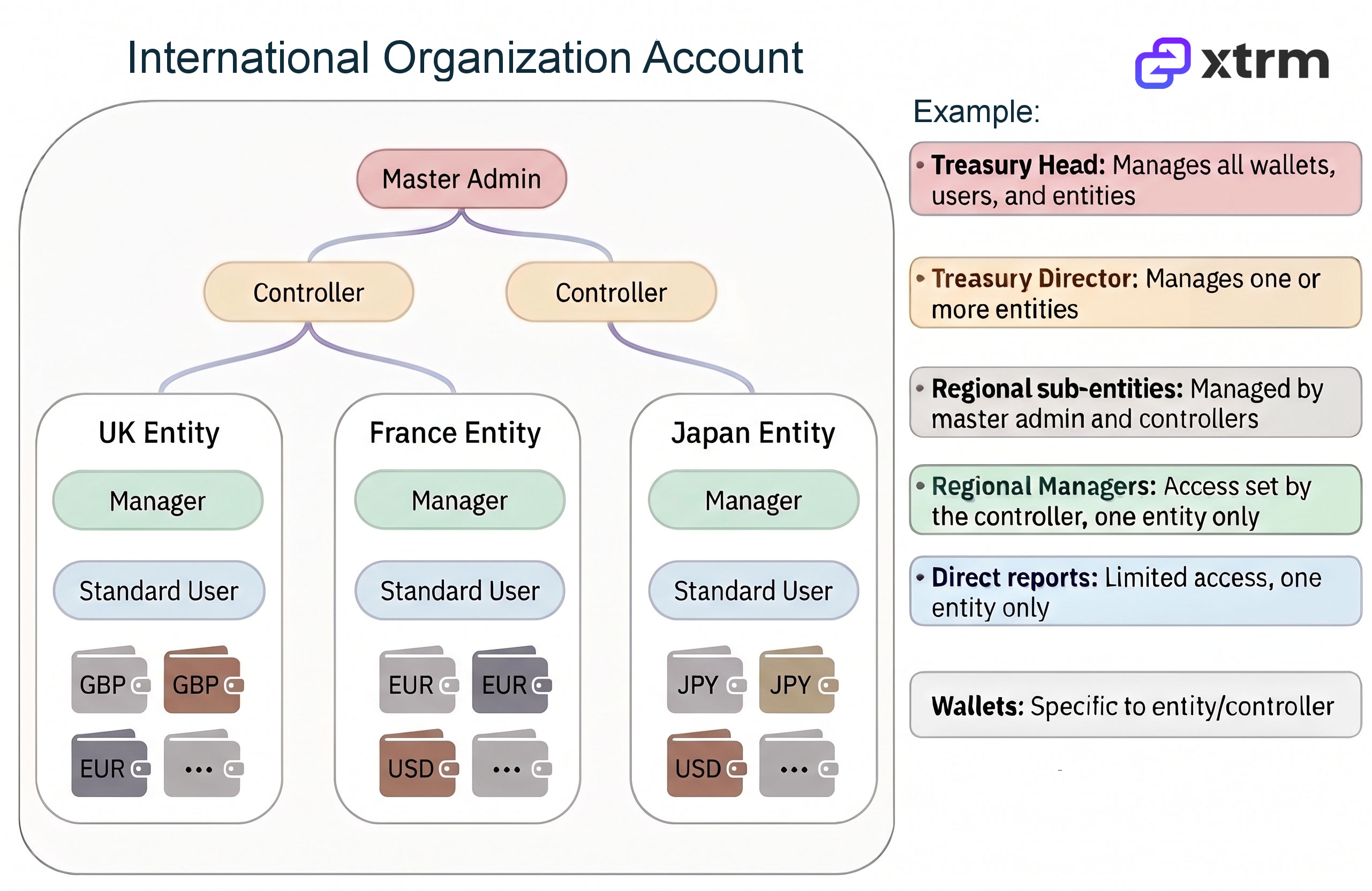
Xtrm is a global multi-tenant payment system. That means your company has one organization account (Prime Entity) worldwide, with separate entities underneath it for regional subsidiaries or any legal entity your organization owns. Regional user administrators can create and manage their own entity's profile, users, wallets, and role-based access independently, based on local needs.
Organizations and entities give you a way to reduce operational risk by centrally managing all your accounts and the users who have access to them, while configuring organization-wide policies.
In summary:
Only one organization account is needed for your company globally.
You can set up as many regional or subsidiary entities within the organization as you like.
You can add as many single-entity and multi-entity regional/subsidiary users as you like.
Wallet and service access are strictly controlled via security roles and settings.
Existing master admin, controller, or manager users can add new regional users. See How to Add Entities and Users to Global Company Accounts.
Master admin considerations
One designated person — typically someone with signatory authority — is designated the Master Admin and should register the organization account (Prime Entity) using company headquarters details (e.g., register "ACME Inc HQ," not "ACME Region 1" or "ACME Region 2").
If you're a regional office, your company's organization account (Prime Entity) must be registered first. This is done at xtrm.com under company registration. If an organization account already exists for your company, you'll be notified and asked to contact the existing master admin, controller, or manager users to be added as a user for your region.
Because Xtrm operates as a financial service account under regulatory standards similar to a bank, the master admin should be someone with financial signatory approval within your company — typically from the executive team, treasury department, or finance group. This person isn't solely responsible for managing the Xtrm account; they can delegate responsibility to regional entity controllers, managers, and standard users.
Entities, user roles, and access levels together control the separation of access to wallets and funds. Regional entities can have access limited to their own wallets and functions — functionally similar to having separate accounts from a compliance and security standpoint, but with the benefit of global account compliance and consolidated reconciliation reporting. This structure also simplifies onboarding and ensures faster, more accurate payments, while keeping the right people limited to the right wallets, funds, and services.
Key terms
Term | Description | Identifier |
|---|---|---|
Organization (Prime Entity) | Your prime entity, typically your HQ. Has a unique Organization ID (OID). There is one organization account (Prime Entity) globally, with multiple regional entities beneath it. | SPN prefix + 7 numbers (e.g., SPN1234567) — one per organization |
Entities | Local country or regional entities — for example, "ACME France" or "ACME EMEA" (compared to an org, e.g., "ACME HQ"). Entities can also be legally separate companies or member firms rolling up into one organization. | Name (e.g., Acme France) — any number |
Wallets | Within an entity account, you can have as many currency wallets as you like. Wallets are assigned to entities and are only visible to users with access to that entity. | Unique number (e.g., 12345678910) — any number |
Users | Anyone with access to your company account. Users can hold different roles — master admin, controller, manager, or standard user. | Unique account ID — any number |
Master Admin | The key global contact. There is one master admin per global organization account, typically in finance or treasury with company signatory authority. Has full access to all services by default (can be restricted on request). | SPA prefix + 7 numbers (e.g., SPA1234567) — one per organization |
Controller User | Multi-regional or multi-entity administrators responsible for one or more regions or entities. Any number allowed. Controllers can manage Controller, Manager, or Standard users within the regions they control, plus manage wallets and service access for users in those regions. | SPA prefix + 7 numbers (e.g., SPA1234567) — any number |
Manager User | Regional administrators responsible for a single region or entity. Any number allowed. Managers have full access to all wallets and services within their entity, and can create and manage standard users within that entity. | SPA prefix + 7 numbers (e.g., SPA1234567) — any number |
Standard User | Regional program and wallet administrators. Any number allowed. Access can be set very granularly per user. | SPA prefix + 7 numbers (e.g., SPA1234567) — any number |
Entities
For step-by-step instructions on creating new entities and adding users to your global organization account, see How to Add Entities and Users to Global Company Accounts.
User roles and access levels
There are four levels of access. A master, controller, or manager user can edit any user in the entities they manage, provided that user is at a lower access level than their own.
Level | Access |
Full | Full access to all features |
Custom | Custom access to features |
View | View-only access to wallets and features |
Limited | Limited access to basic features |
✓ = Yes ✗ = No ○ = Optional (access-level setting)
4 User Levels: | Master Admin | Controller | Manager | Standard | Suspended |
Typical Role | Senior Finance/Treasury | Multi Region, Multi-Entity Finance/Treasury Head | Single Regional Finance, Department Head | Department Manager (Most common) | N/A |
Number Allowable | 1 | Any number | Any number | Any number | Any Number |
Entity Control | Multi | Multi | Single | Single | X |
Log into the Company Account | ✓ | ✓ | ✓ | ✓ | X |
Delete Users | ✓ | ✓ | X | X | X |
Manage Multi Regions | ✓ | ✓ | X | X | X |
Create Users | ✓ | ✓ | ✓ | X | X |
Suspend Users | ✓ | ✓ | ✓ | X | X |
Set User Access Levels | ✓ | ✓ | ✓. | X | X |
Send Password Reset Emails | ✓ | ✓ | ✓ | X | X |
Fund Wallets | ✓ | ✓ | ✓ | O | X |
Send Funds | ✓ | ✓ | ✓ | O | X |
Transfer Funds (withdraw) | ✓ | ✓ | ✓ | O | X |
Currency Exchange | ✓ | ✓ | ✓ | O | X |
Create Programs | ✓ | ✓ | ✓ | O | X |
Link Banks | ✓ | ✓ | ✓ | O | X |
Create Edit Claims | ✓ | ✓ | ✓ | O | X |
Create Edit Beneficiaries | ✓ | ✓ | ✓ | O | X |
Create Edit Connected | ✓ | ✓ | ✓ | O | X |
Create Edit Wallets | ✓ | ✓ | ✓ | O | X |
View Claims | ✓ | ✓ | ✓ | O | X |
View Reports | ✓ | ✓ | ✓ | O | X |
View Beneficiaries | ✓ | ✓ | ✓ | O | X |
View Connected | ✓ | ✓ | ✓ | O | X |
View Wallets | ✓ | ✓ | ✓ | O | X |
Setting up a user
Create the user account by completing the required fields.
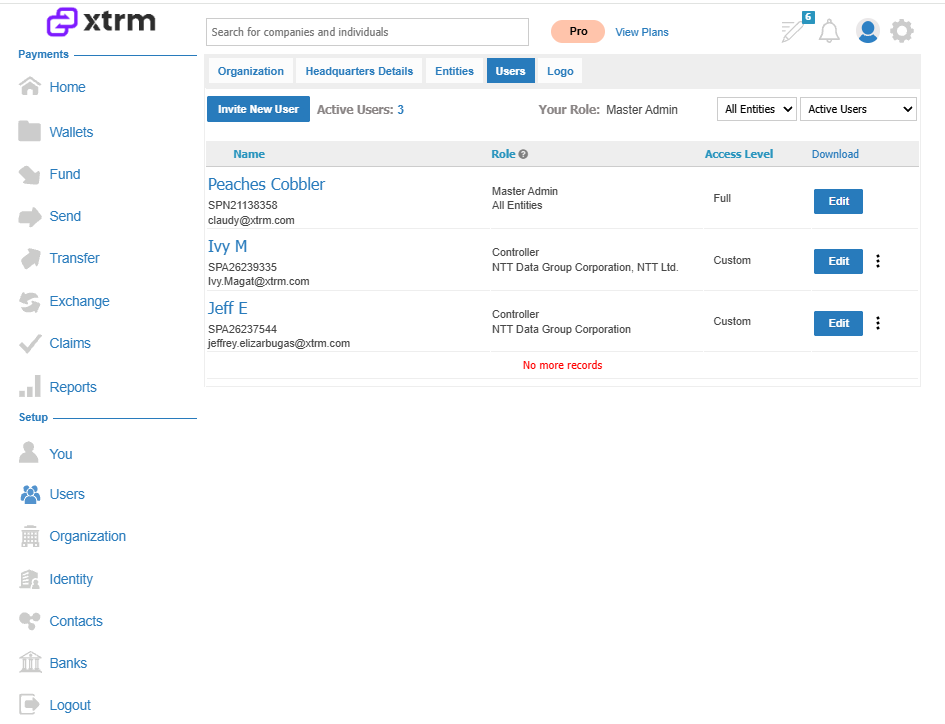
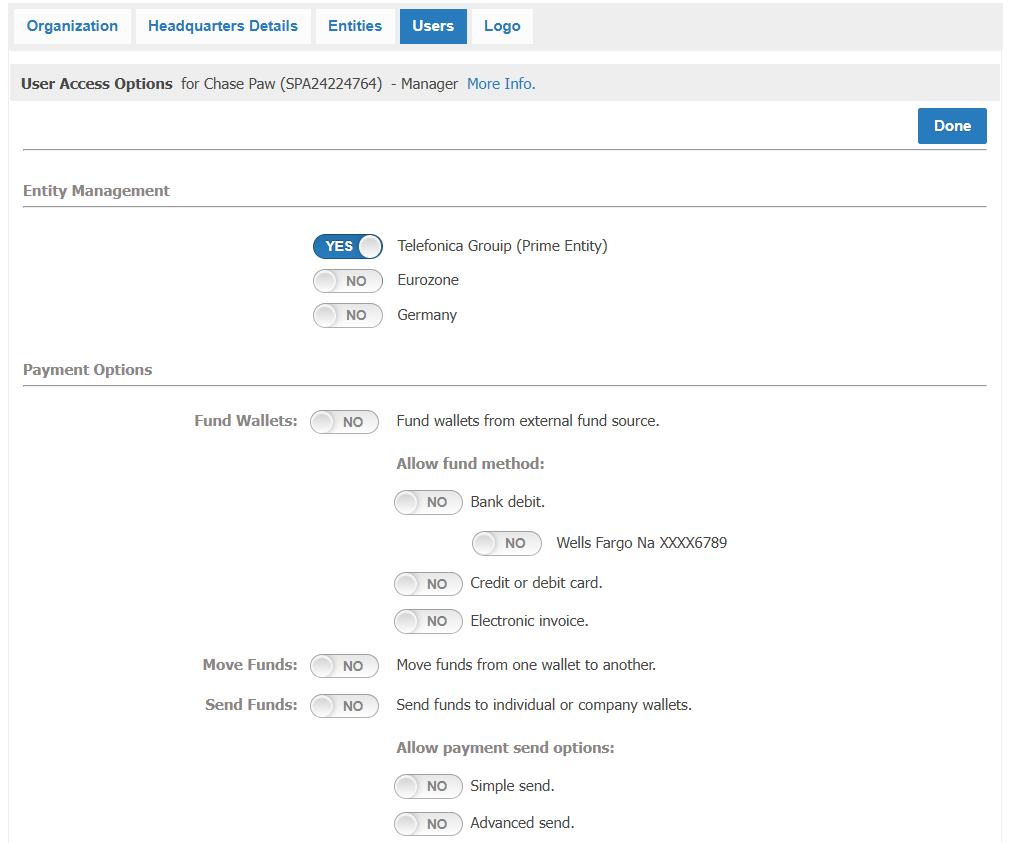
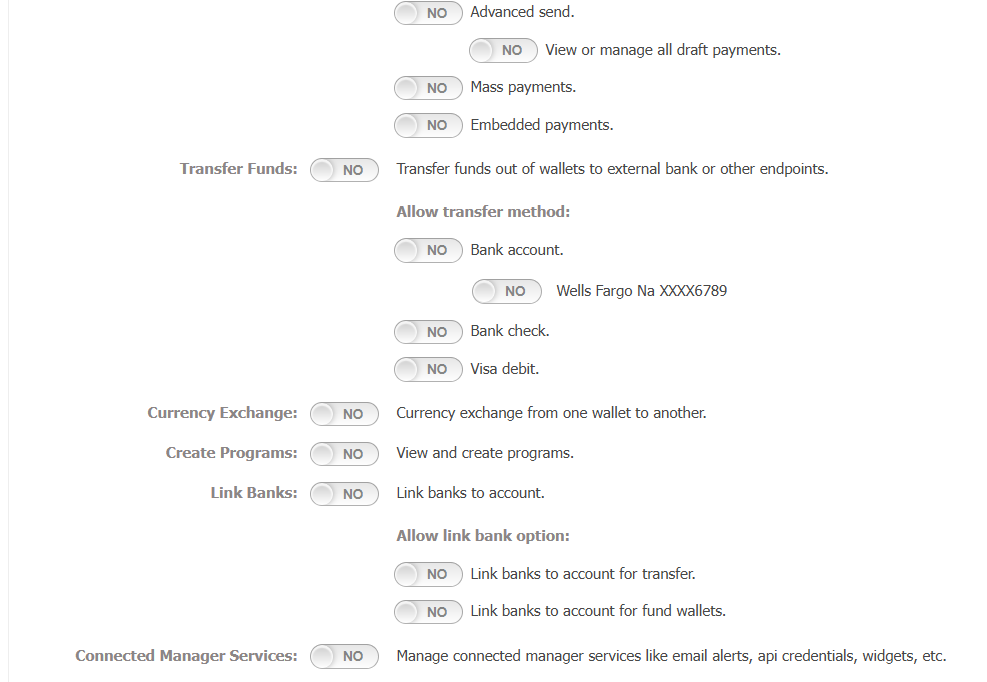
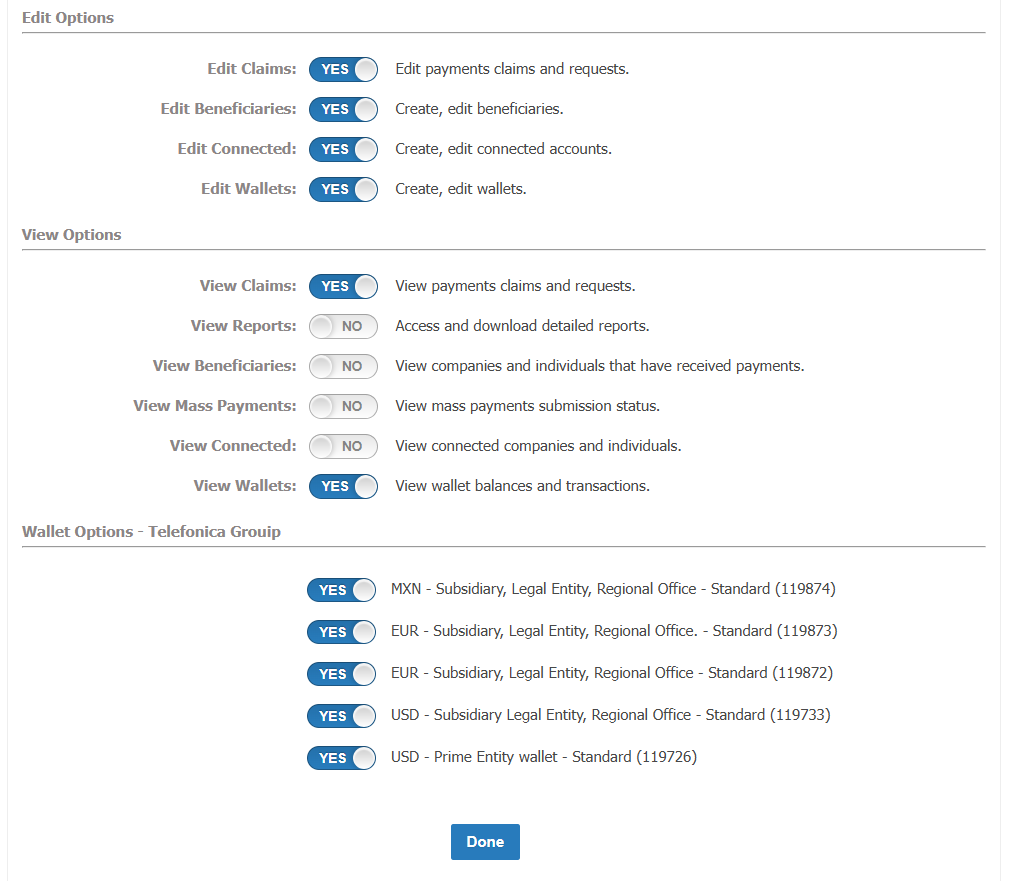
2. Selecting a system access level other than "Full" takes you to the access settings page, where you can set specific permissions per user.