TRANSFER002 — Company: How to Transfer Funds to a Bank Account
Last updated: August 26, 2026
Transferring funds from your company's Xtrm digital wallet directly into a linked business bank account is secure and simple. All bank transfers require Two-Factor Authentication (2FA) via a One-Time Security Code to ensure maximum security.
Want to see how this works in real-time? Use the interactive demo below to click through the steps before reading the full guide.
Step-by-Step Transfer Instructions
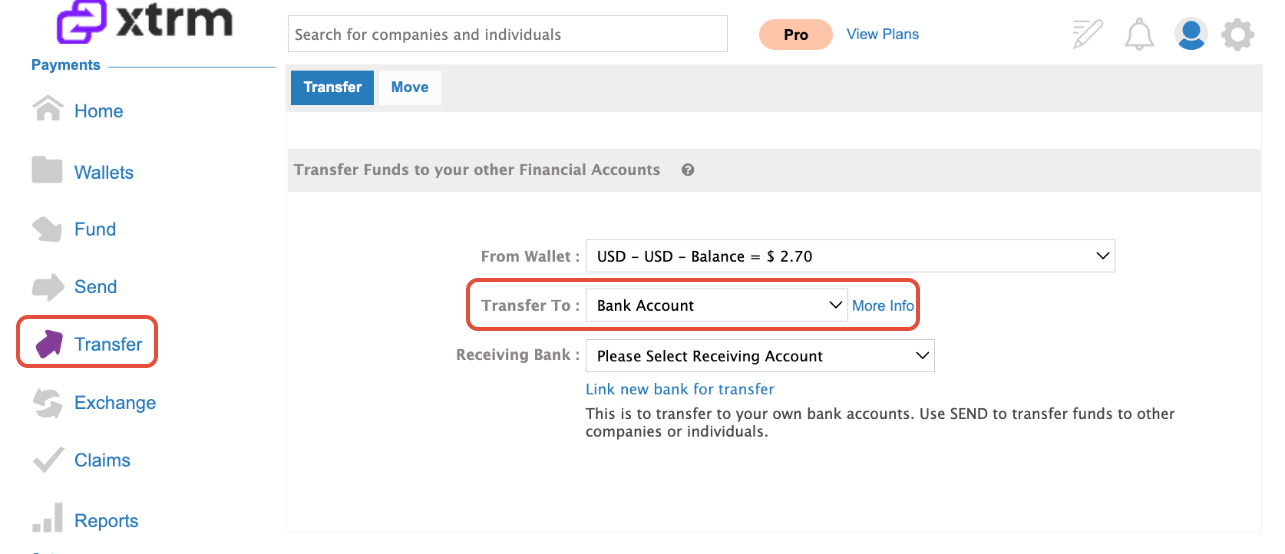
1. Navigate to Bank Transfer:
Log in to your Xtrm Company Account, click Transfer in the left-hand menu, and select Transfer To > Bank Account from the dropdown options.
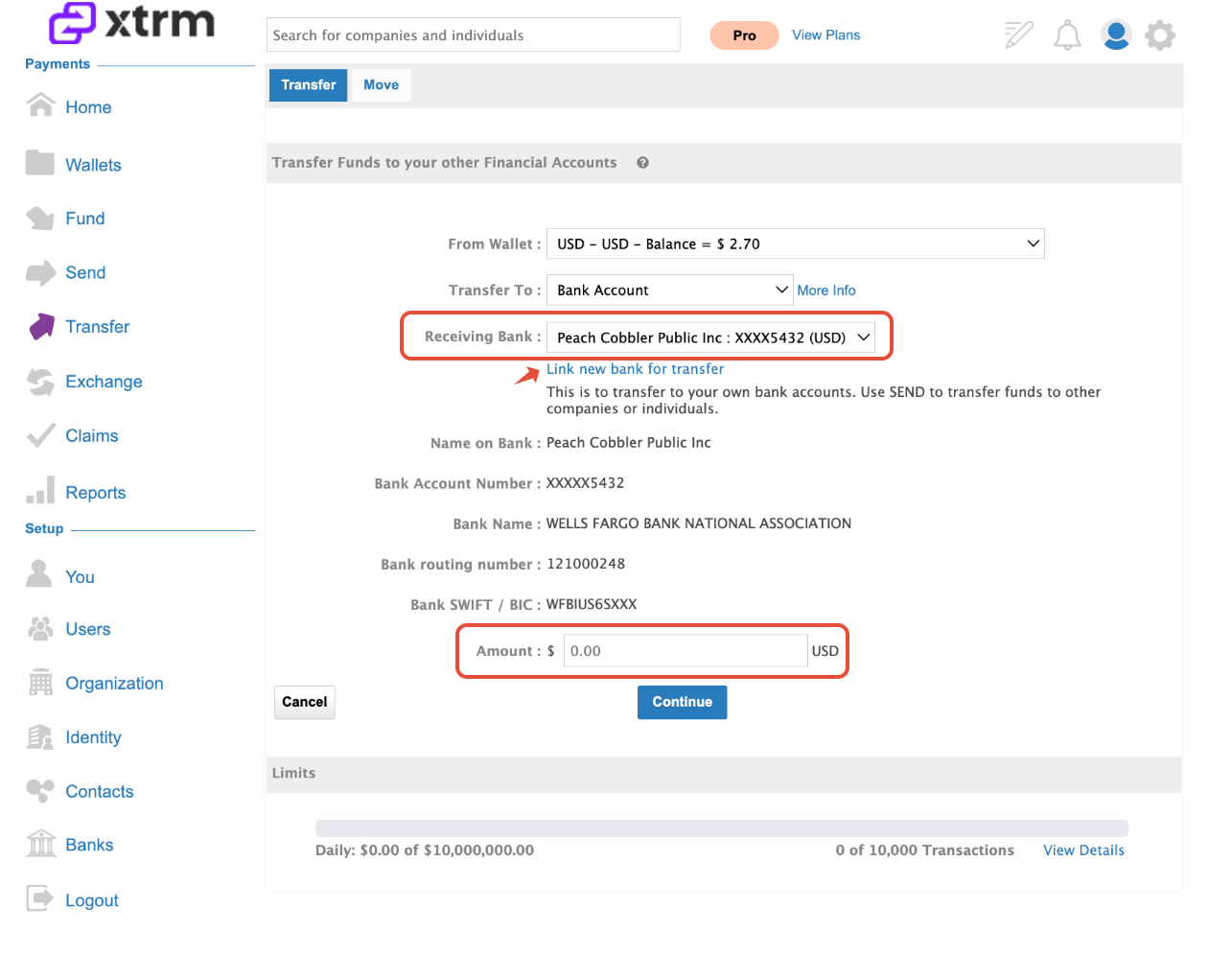
2. Select Receiving Bank & Amount:
Choose your target receiving bank from the dropdown list (identified by bank name, last 4 digits, and currency). Enter the desired transfer amount and click Continue.
(If your target bank is not listed, use the Link Bank Account option to connect a new financial institution).
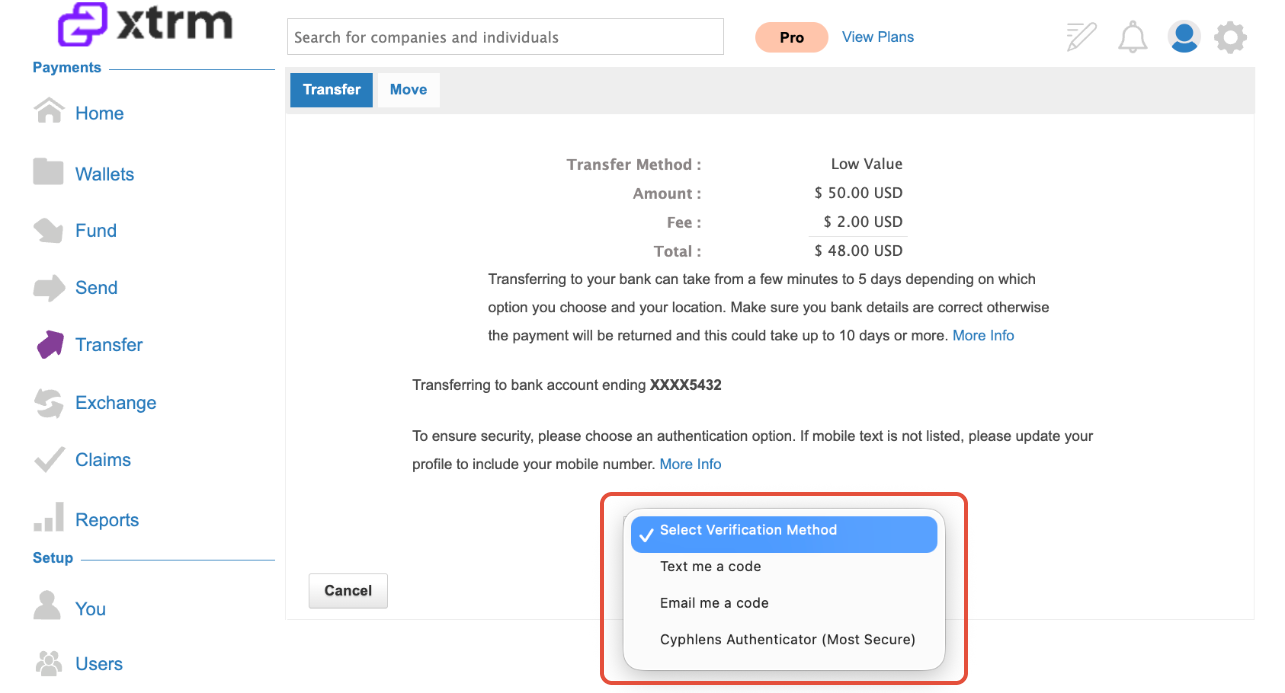
3. Request Security Code:
Select your preferred channel (Email, Mobile SMS or Cyphlens) to receive your One-Time Security Code for two-factor authentication.
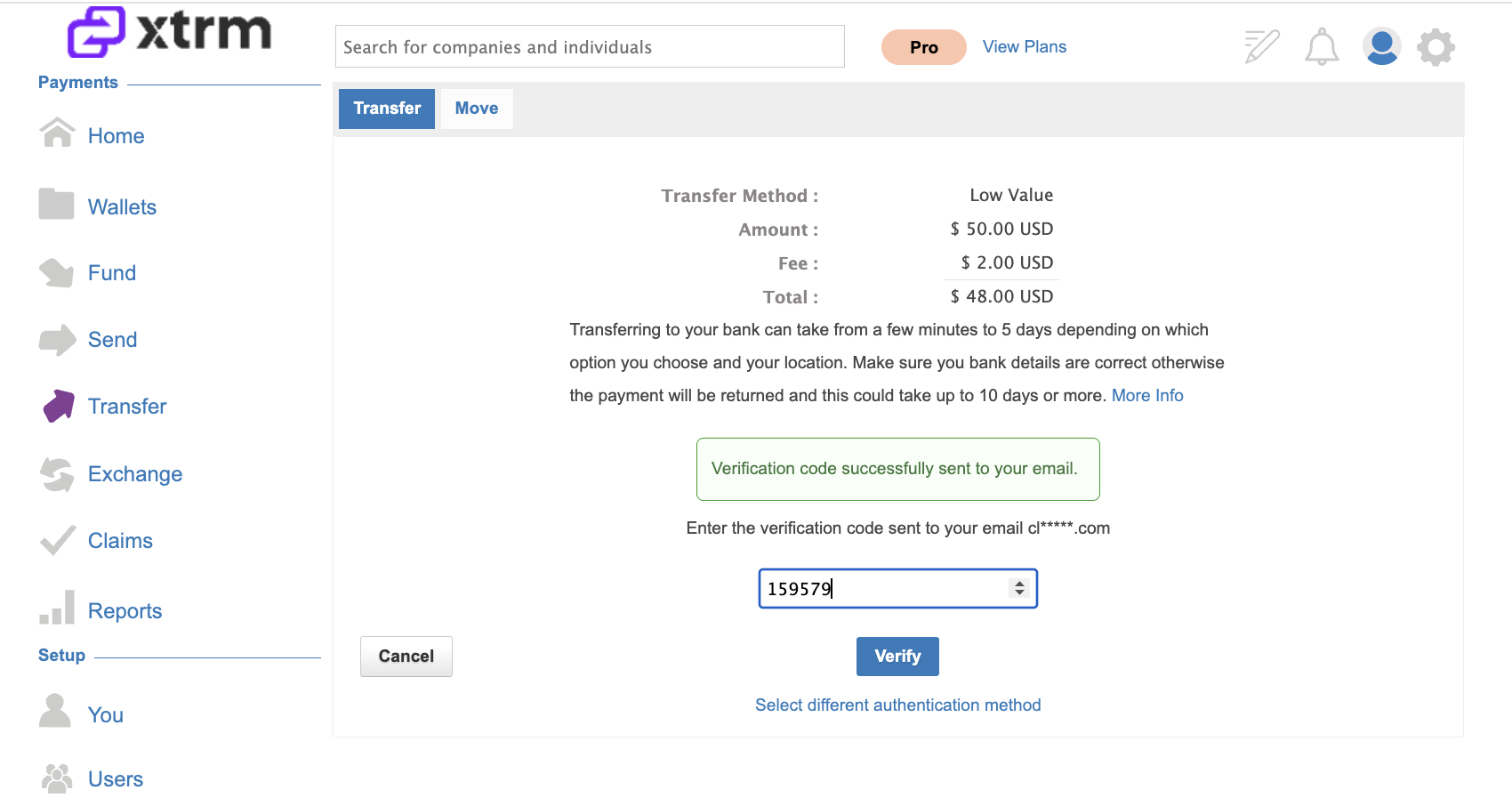
4. Authenticate Transaction:
Enter the code received on your device and click Verify.
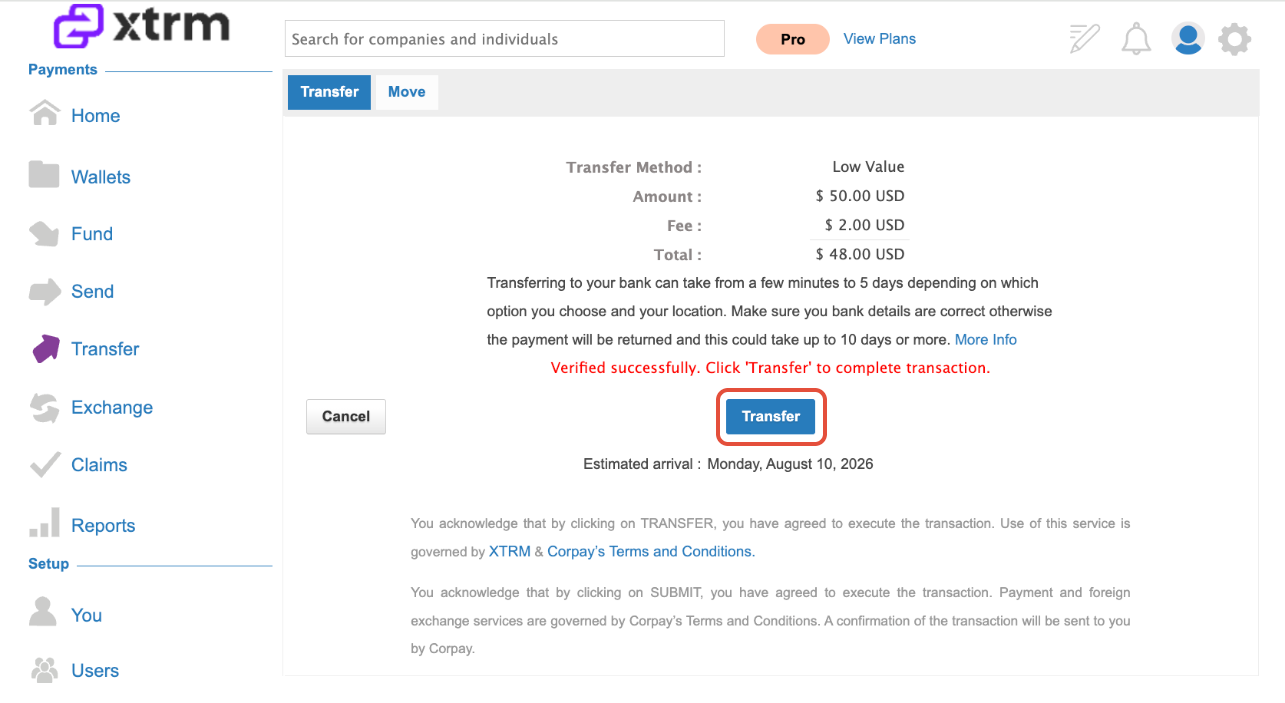
5. Execute Transfer:
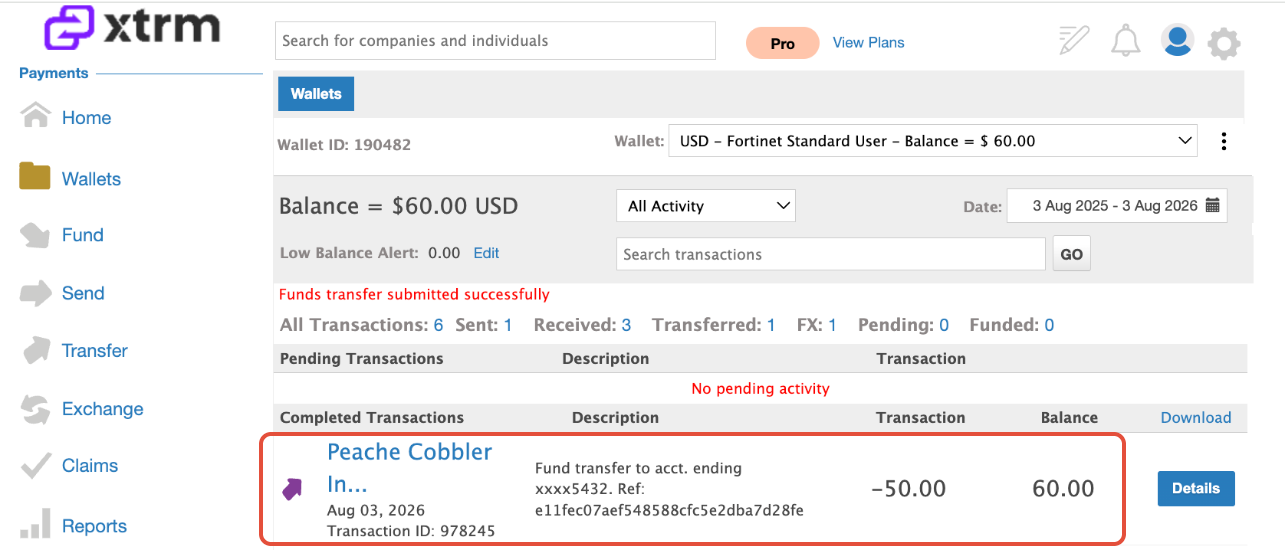
Once verified, click Transfer to finalize the transaction. You will be redirected back to your wallet, where the transaction will reflect as Completed.
6. Record of Transfer:
Once initiated, you will return to Wallets to view your transfer record.
7. Bank Statement Record:
A transaction record will appear on your bank statement referencing either Xtrm or the specific remitter who sent the payment. (See example below)
