COMPANY006 — Low Balance Email Alerts
Last updated: August 26, 2026
To ensure your automated disbursements and mass payment files are processed without delay, it is essential to maintain a positive balance across your company wallets. If a wallet balance drops to zero or falls below your required funding threshold, pending payment processing will be paused until the wallet is replenished.
Setting up Low Balance Email Alerts allows you to define custom minimum thresholds for each wallet and designate specific company users to receive automated notifications when funds run low.
Step-by-Step Instructions
Part 1: Set the Low Balance Threshold on a Wallet
Access Wallet Activity: Locate target wallet.
Log in to your Xtrm Company Account at www.xtrm.com.
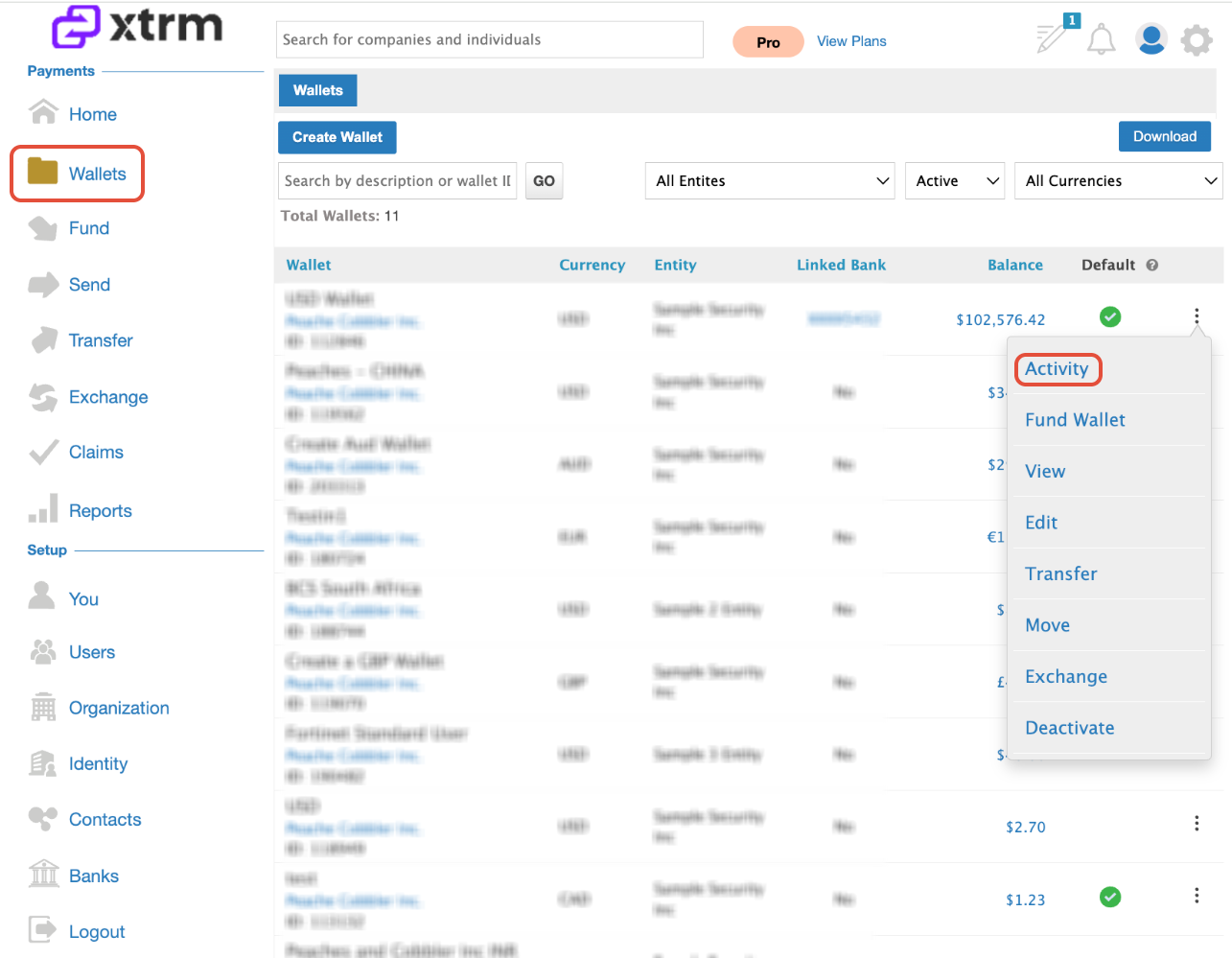
From the left-hand navigation menu, click Wallets.
Locate the target wallet you wish to configure and click Activity.
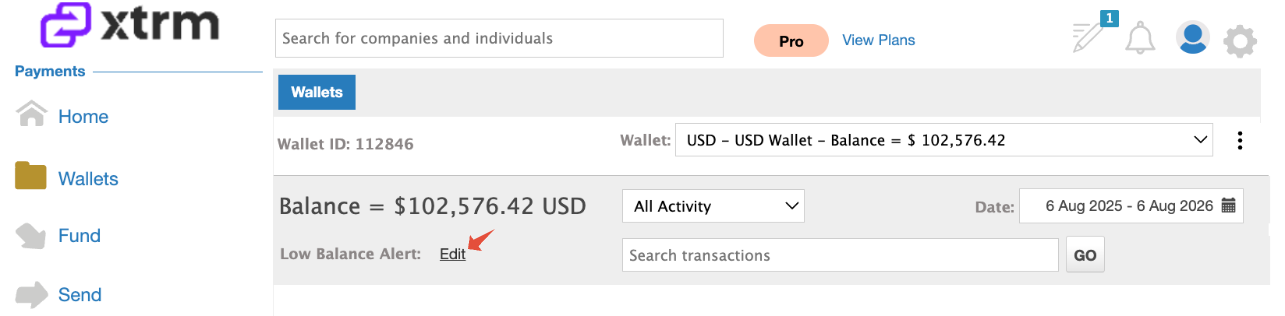
Set the Threshold Amount: Define minimum balance amount.
Locate the Low Balance Alert message on the wallet overview screen.
Click Edit next to the alert setting.
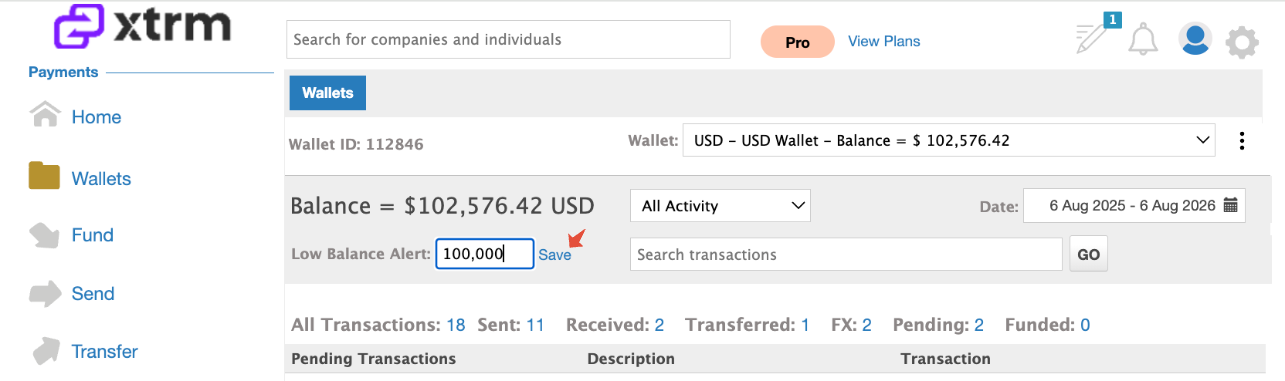
Enter your desired minimum threshold amount (e.g.,
$100,000).Click Save.
Assign Email Recipients: Configure user alert notifications.
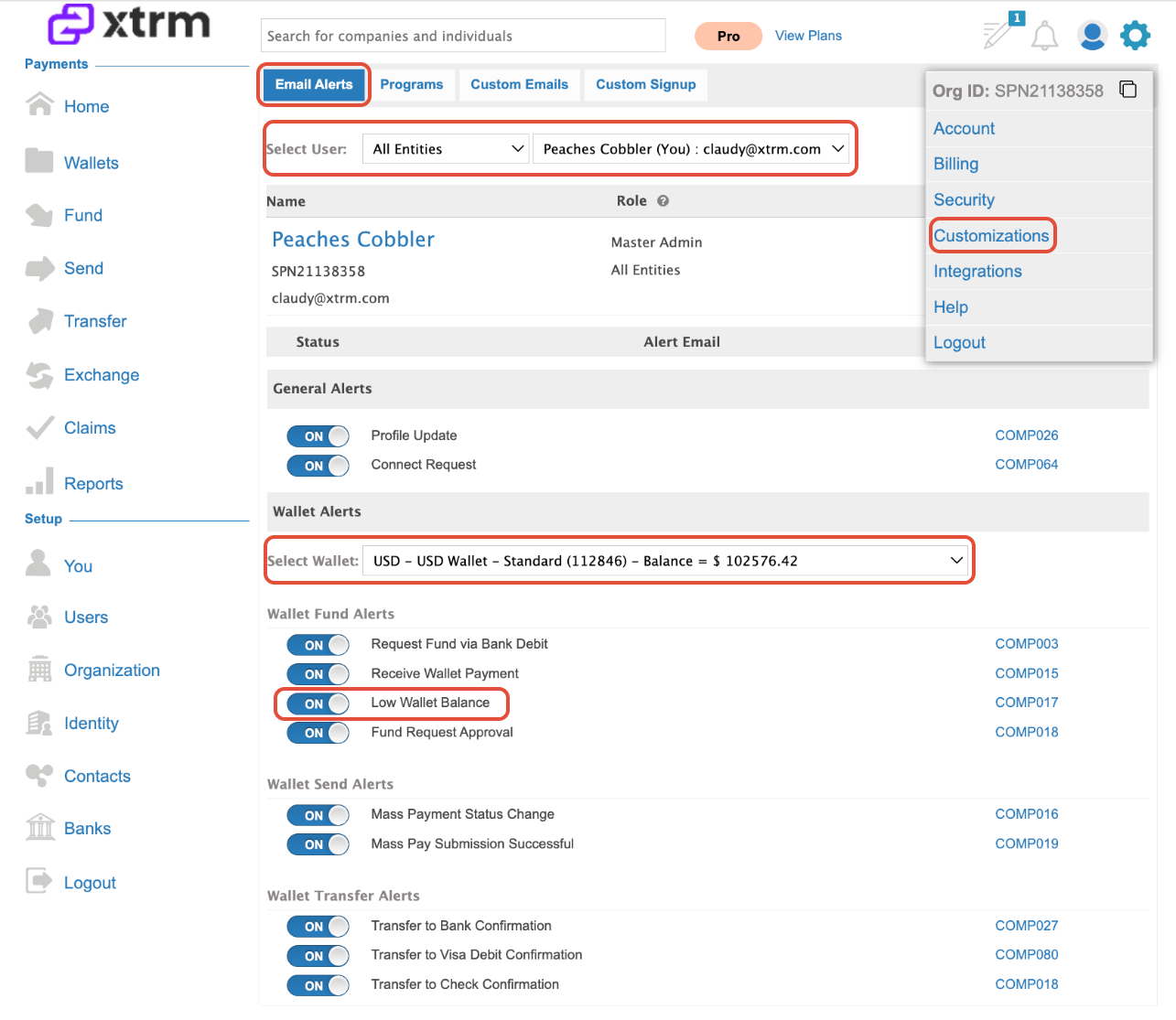
Click the Settings Cog icon in the top far-right corner of the screen.
Select Customizations
Choose the specific User who should receive low balance notifications.
Select the Wallet configured in Part 1.
Toggle the Low Account Balance Alert to ON for that user.
Notification Details & Template Reference
Email Notification Code:
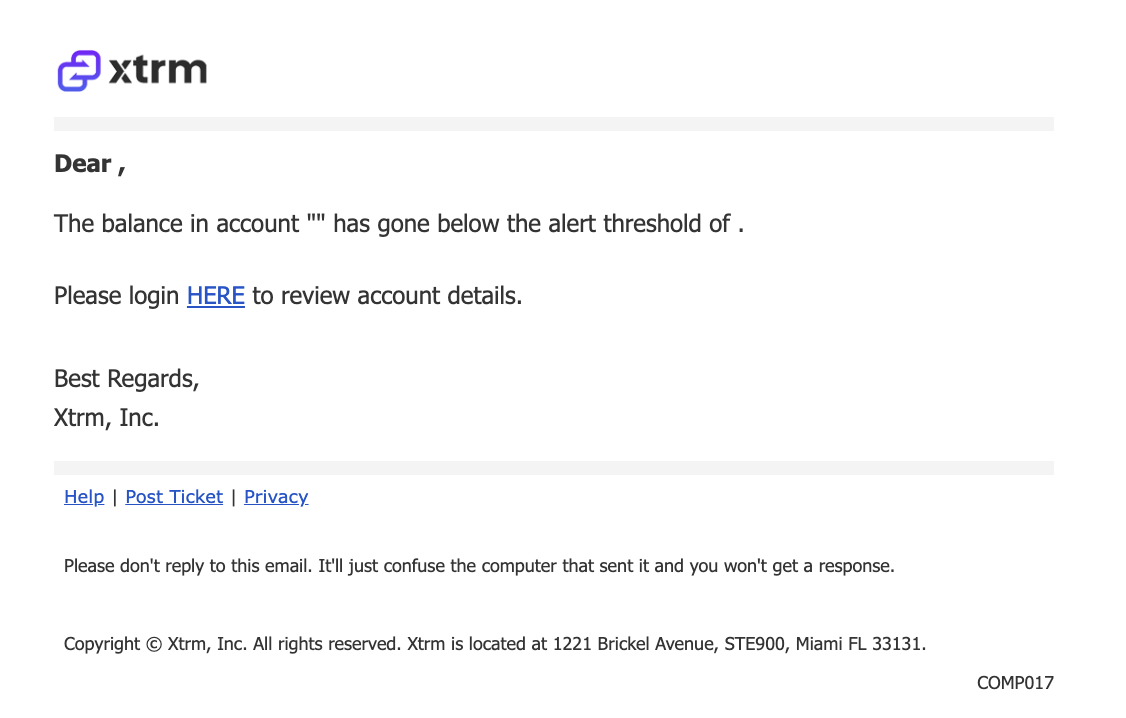
COMP017(Wallet Balance Threshold Alert)Sample Preview: You can view a sample layout of the automated email by clicking the COMP017 template code link on the Email Alerts configuration page
Multiple Recipients: You can assign multiple account users to receive alerts for the same wallet by repeating Step 3 for each user.